
MCP (Model Context Protocol)
Connect your own AI tool to your SparkReceipt account
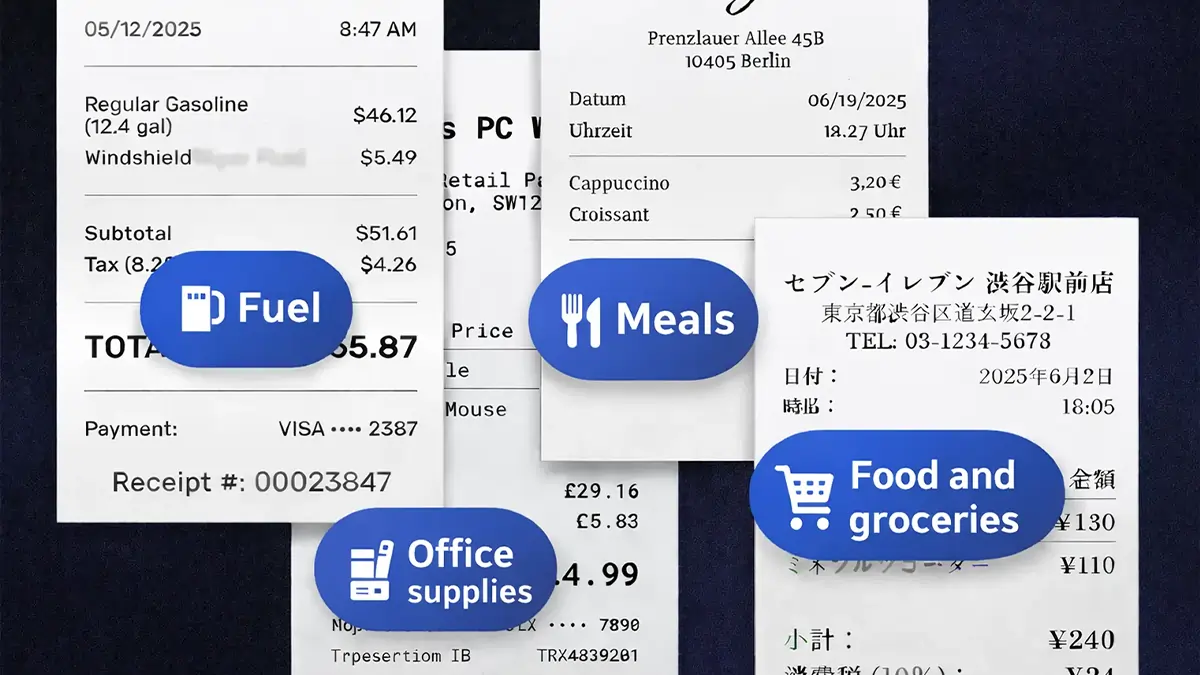
Bring your receipts and expenses into the AI tool you already use. Connect ChatGPT, Claude, Cursor, or any MCP client to SparkReceipt over the open Model Context Protocol, and let it pull up last month's expenses, tag a batch of receipts, create a category, or upload a receipt for scanning — all without leaving your assistant. It runs the same actions as SparkAgent, from your own AI tool.
Your AI tool, working with your books
What Is MCP?
MCP — the Model Context Protocol — is an open standard for connecting AI assistants to the tools and data they work with. SparkReceipt runs an MCP server, so an outside assistant like ChatGPT, Claude, or Cursor can connect straight to your account and act on your documents for you.
Ask in plain language — "list my expenses from July over 100 euros", "tag every Uber receipt this month as Travel" — and your assistant picks the right action and runs it. It's the same action set that powers SparkAgent inside the app, now reachable from the AI tool you already work in.
How to Connect Your AI Tool
Open the MCP Tab
In the SparkReceipt web app, go to Settings → MCP. You'll find your Server URL and step-by-step setup instructions for each supported tool. Connecting is a per-user action — you connect your own assistant to your own data.
Add SparkReceipt to Your Assistant
Claude Code connects with a single terminal command. Cursor connects by adding SparkReceipt as an MCP server in its settings. Claude Desktop and ChatGPT connect as a custom connector — in ChatGPT, turn on developer mode under Settings → Connectors → Advanced, then add the Server URL as a custom connector. Any other MCP-capable tool connects the same way — paste the Server URL as a remote MCP server.
Sign In and Choose Permissions
The first action opens a "Connect to SparkReceipt" screen in your browser. You sign in on SparkReceipt's own page — the AI tool never sees your password — and choose which accounts it can reach and what it's allowed to do.
Ask in Plain Language
Now your assistant can work with your receipts and expenses directly. Ask it to find, tag, categorize, reconcile, report, or upload a document — and it runs the matching SparkReceipt action.
Connect Claude Code in One Command
In Claude Code, add SparkReceipt as a remote MCP server with a single command — use the exact Server URL shown on your own MCP settings page:
claude mcp add --transport http sparkreceipt https://api.app.sparkreceipt.com/mcp
Cursor connects by adding SparkReceipt as an MCP server in its settings (its mcp.json). Claude Desktop connects as a custom connector. ChatGPT connects as a custom connector too — turn on developer mode under Settings → Connectors → Advanced, then add the Server URL. Any other MCP client connects the same way — add the Server URL as a remote MCP server.
Security and consent, by design
You Stay in Control
Connecting runs over OAuth 2.1. You sign in on SparkReceipt's own page — the AI tool never sees your password and only receives a limited access token. The assistant acts as you, with your role's permissions: it only sees and changes your own data, and it can never do more than your account role allows.
You choose what it can do with three separate permission levels: Read your data, Create and update data, and Irreversible actions. Each is ticked independently — granting one never grants another. Irreversible actions, which include permanently deleting data, are never pre-selected and carry a clear warning; leave them off unless you want the tool able to delete. Connect anytime, and disconnect anytime — every action is recorded in an activity log.
One assistant, all your accounts
What You Can Do Once Connected
Your assistant can run the same set of actions that power SparkAgent — over 90 of them — plus two that are unique to MCP. You ask in plain language and it picks the action:
- "List my expenses from July over 100 euros."
- "Tag every Uber receipt this month as Travel."
- "Create a category called Software subscriptions."
- "Match this bank statement against my receipts."
- "Build a report of this quarter's expenses."
If you belong to more than one account — a personal one and a company one, or
linked accounts — you choose whether the tool can reach all of them or only the
ones you pick. A built-in account_info action lets the assistant list the
accounts and roles it can act on, and every action targets one specific
account.
Scan straight from your assistant
Submit a Document Without Leaving the Chat
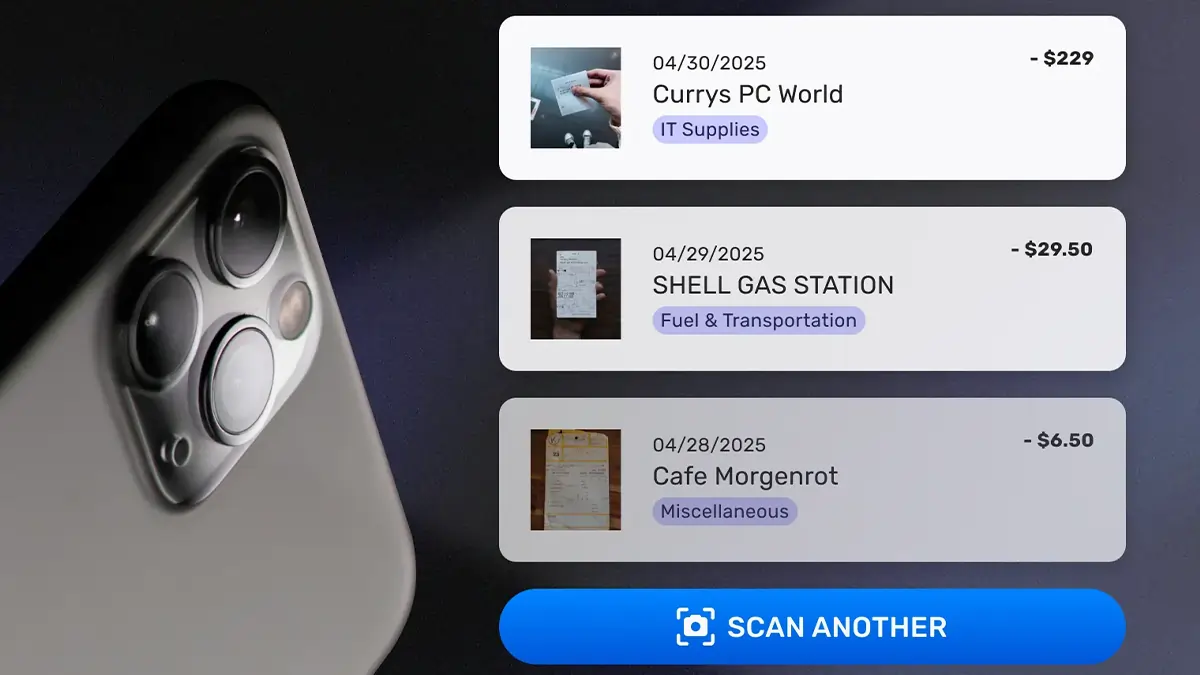
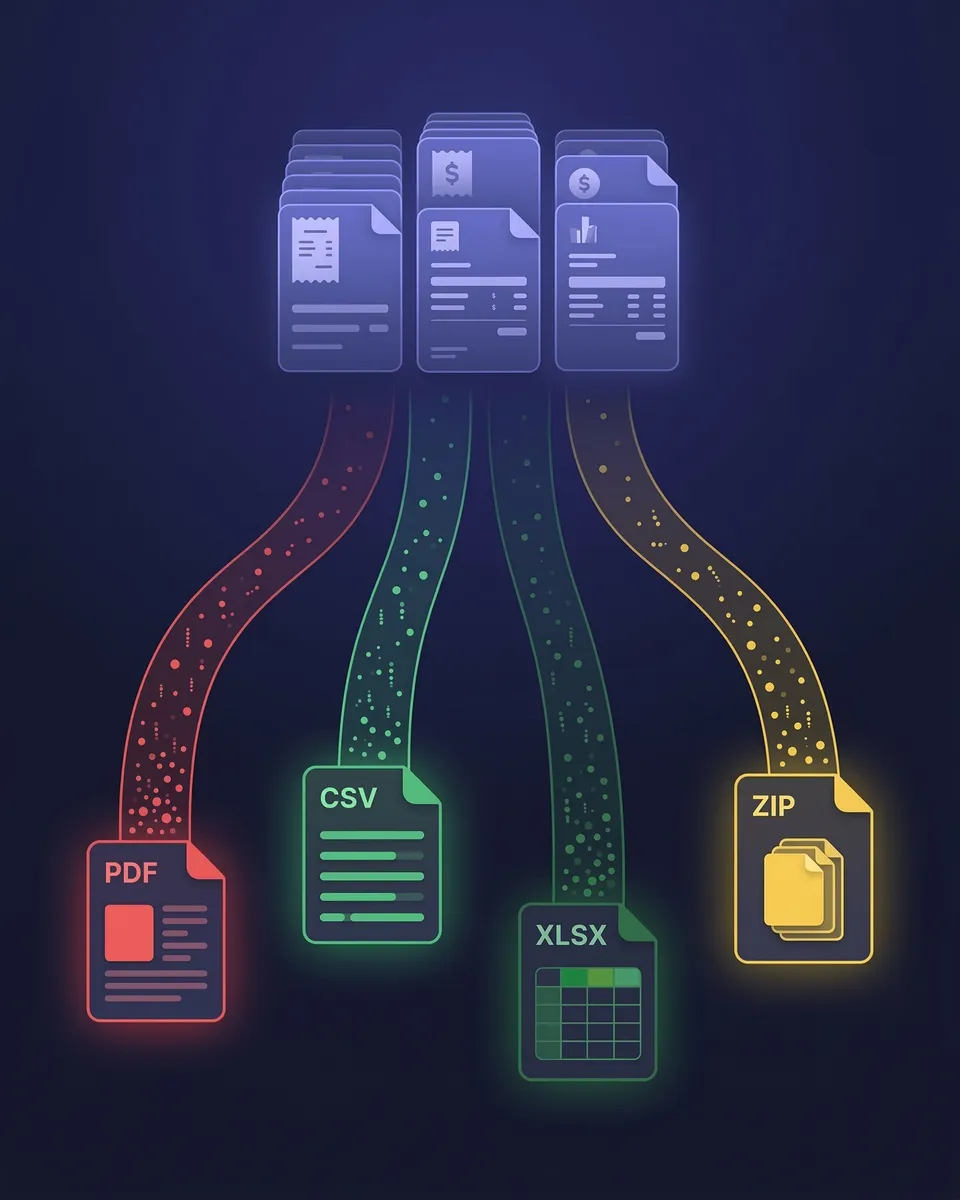
MCP adds one action you won't find inside SparkAgent: submit a document. Hand your assistant a receipt, invoice, or bank statement and it sends the file to SparkReceipt, where it runs through the same OCR and AI extraction pipeline as any web or mobile upload.
You can send 1 to 5 files per document — handy for a multi-page invoice — up to 15 MB each. State whether it's an expense, income, or bank statement, or let the AI classify it. Each submission uses one scan from your quota, extraction runs in the background, and it's fully reversible: trashing the document undoes it.
Simple, Transparent Pricing
1 user included, add more at a per-user rate. No hidden costs.





Frequently Asked Questions
It's a way to connect an outside AI assistant — like Claude, Cursor, or another MCP client — straight to your SparkReceipt account, so it can work with your receipts and expenses for you. It runs over MCP (Model Context Protocol), an open standard, and exposes the same actions that power SparkAgent inside the app.
Claude Code, Cursor, Claude Desktop, and ChatGPT have step-by-step setup instructions on your MCP settings page. Claude Code connects with a single terminal command, Cursor by adding SparkReceipt as an MCP server in its settings, and Claude Desktop as a custom connector. ChatGPT connects as a custom connector as well — turn on developer mode under Settings → Connectors → Advanced, then add your Server URL. Any other MCP-capable tool connects the same way — add your Server URL as a remote MCP server.
No. Connecting runs over OAuth 2.1, so you sign in on SparkReceipt's own page in your browser and the AI tool only receives a limited access token — it never sees your password. The assistant acts as you, with your role's permissions: it only sees and changes your own data and can never do more than your role allows.
You choose from three independent permission levels: Read your data, Create and update data, and Irreversible actions. Granting one never grants another. Irreversible actions — which include permanently deleting data — are never pre-selected and carry a warning, so grant them only if you want the tool able to delete. You can disconnect anytime, and every action is recorded in an activity log.
When you connect, you choose whether the tool can reach all of your accounts or only specific ones. Every action targets one specific account, and a built-in account_info action lets the assistant list the accounts and roles it can act on.
Yes. An MCP-only action lets it submit a document — 1 to 5 files per document, up to 15 MB each. The file runs through the same OCR and AI extraction pipeline as any web or mobile upload, uses one scan from your quota, and is reversible if you trash the document.
Yes — MCP is available now. You connect it yourself from the SparkReceipt web app under Settings → MCP, where you'll find your Server URL and step-by-step setup instructions. It runs the same action set as SparkAgent, reachable from your own AI tool.