Skip to content

Stripe QuickBooks Integration

Save hours at every month end: your Stripe sales, refunds, tax and fees are booked for you, without a CSV export

SparkReceipt's Stripe QuickBooks integration reads your Stripe balance reports with a restricted key you create, then books each month's sales as Income and Stripe's fees as an Expense. Payouts are matched to the deposits in your bank, so the same money is never counted twice, and the month is ready to publish to QuickBooks Online or Xero. The first import reaches back up to 24 months.

7-day free trial

Business Owners in 175 Countries Trust SparkReceipt

Tracy DugganRobert ConnollyRafael RoaFrédéric ThériaultPierce Mooney
4.8on the App Store · 4.6 on Google Play · 2,700+ ratings
24 monthsImported When You Connect
1 IncomePer Month and Currency
MonthlySales, Refunds, Tax and Fees
190Currencies Supported

Stripe Bookkeeping Before and After SparkReceipt

What changes when your Stripe activity is booked for you every month

Without SparkReceipt

  • Stripe payouts entered as income, net of fees and on the wrong date
  • Refunds and disputes hidden inside a smaller payout
  • Stripe's processing fees never recorded as an expense
  • Tax collected through Stripe Tax mixed into revenue
  • A CSV export to reformat by hand at every month end

With SparkReceipt

  • Each month's gross sales booked as Income, dated in the month you sold
  • Refunds on their own line, so revenue and refunds stay separate
  • Stripe's fees booked as an Expense with Stripe as the Merchant
  • Tax collected on its own, by customer country and rate
  • Payouts matched to the bank deposit and never counted twice

Gross sales, fees and refunds, each in its own place

Why a Stripe Payout Isn't Your Revenue

The deposit Stripe sends to your bank is what's left after Stripe takes its fees and nets out refunds and disputes. It often covers sales from more than one month, too, because Stripe pays out on a rolling schedule. Book that deposit as income and your revenue comes out too low, your fees disappear, and your sales land in the wrong month.

SparkReceipt books Stripe the way an accountant would. Your gross sales are Income in the month you made them. Stripe's fees are a business expense of their own. Refunds are recorded where they happened. The payout then settles what was already booked, the way a customer's bank transfer settles an invoice.

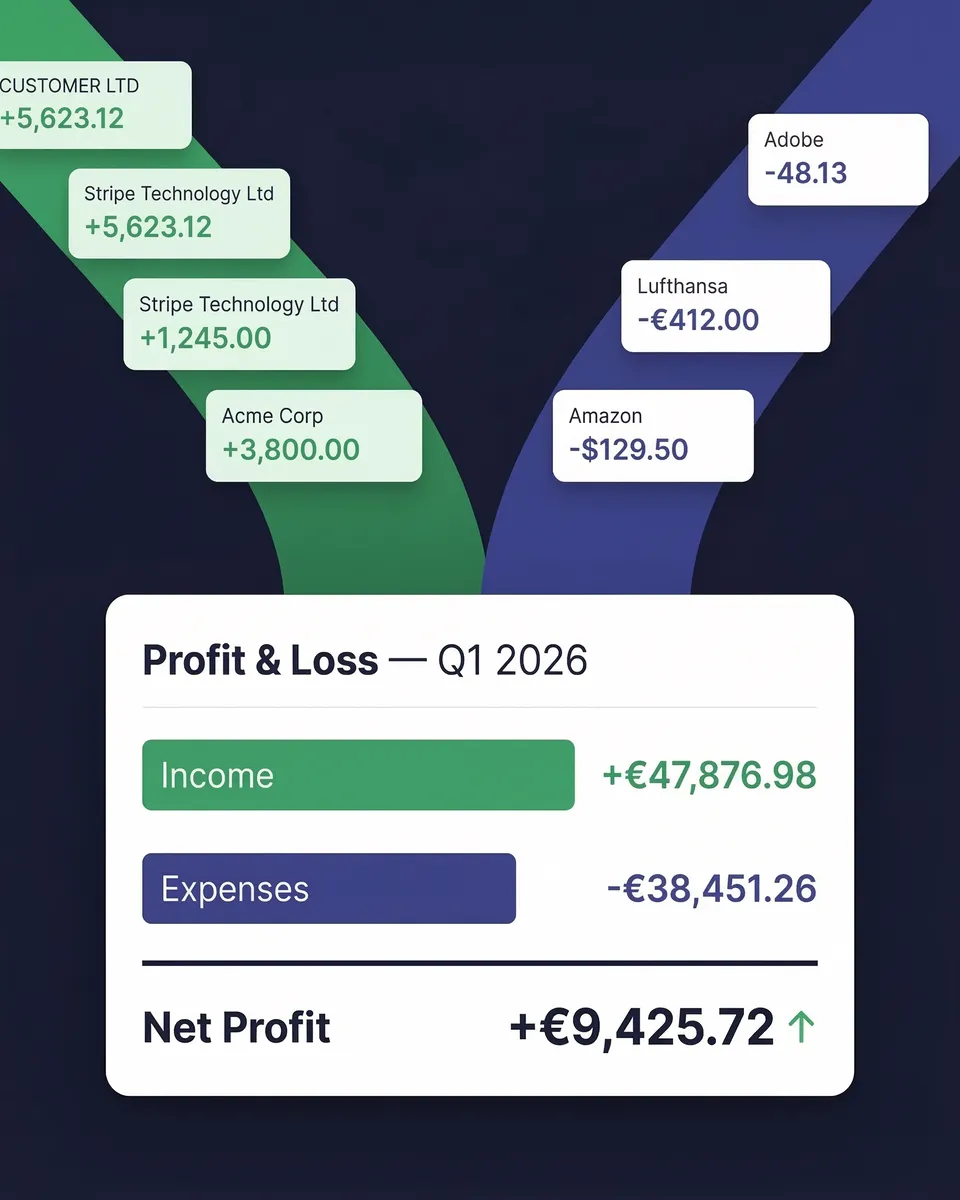
Profit and loss report built from a month of Stripe sales and fees

One Income and one Expense per month

Your Stripe Month, Booked as Income and Expense

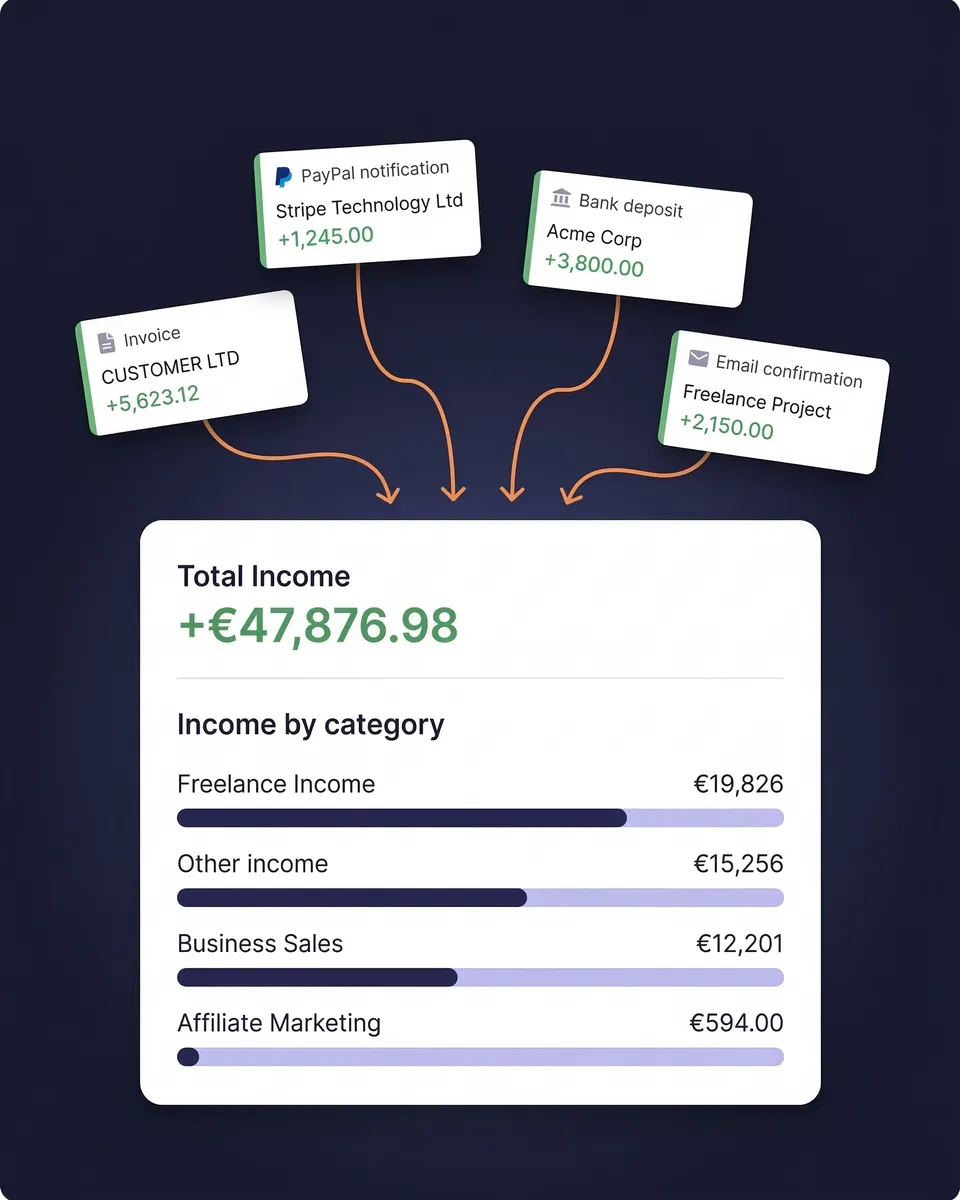
For every month and currency you sell in, SparkReceipt creates one Income with Stripe as the Payer. Its lines hold the month's sales and refunds, plus the tax Stripe Tax collected. Stripe's processing fees and dispute fees go on one Expense for the same month, with Stripe as the Merchant, and the tax Stripe charged on its fees sits on that Expense.

When you connect, you choose one Category for your Stripe sales and one for the fees. Every later import uses them, so the month lands in the right place in your Profit & Loss report without anyone sorting it by hand.

Stripe sales and fees sorted into income and expense Categories

Payouts matched to deposits, automatically

Stripe Reconciliation Without the Spreadsheet

Each import also reads the payouts Stripe sent that month. When the deposit shows up on your bank statement or bank feed in SparkReceipt, it's matched to its payout by the exact amount, Stripe's name and the arrival date. The matched bank line isn't turned into a second Income, so your income report shows each sale once.

That's the part of Stripe reconciliation most people do in a spreadsheet: working out which deposit belongs to which sales. With the payouts read straight from Stripe, it happens as part of the import.

Bank deposits matched to Stripe payouts in SparkReceipt

Publish Stripe sales with the rest of your books

Stripe to QuickBooks Online or Xero

Imported Stripe months are Income and Expenses like any other in SparkReceipt, so they publish to QuickBooks Online or Xero through the same connection your receipts use. Automatic publish rules wait until a month has ended, so a half-finished month isn't sent on its own.

One thing to check first: if QuickBooks or Xero already receives your Stripe sales from another app, publish them from one place only, or the same sales will be booked twice.

Publishing a month of Stripe sales to QuickBooks Online from SparkReceipt

How the Stripe QuickBooks Integration Works

1

Create a Restricted Key in Stripe

In the Stripe Dashboard, open Developers, then API keys, and click Create restricted key. Set Financial Reports to Write, and Files, Payouts and Balance to Read. Leave everything else at None.

2

Connect Stripe in SparkReceipt

In the SparkReceipt web app, open Integrations, find Stripe under Sales platforms and click Connect. Paste the key, which starts with rk_live_, and choose the first month to import, up to 24 months back.

3

Choose Categories for Sales and Fees

SparkReceipt suggests one Category for your Stripe sales and one for Stripe's fees. Change them if you like and save. Every month's import uses them.

4

Review and Publish Each Month

Each month's sales, refunds and tax arrive as one Income, and the fees as one Expense. Check them in your income tracker and reports, then publish to QuickBooks Online or Xero when the month is closed.

What the Stripe QuickBooks Integration Books Each Month

The import reads Stripe's balance reports, the same figures Stripe uses for its own financial reports. This is how each kind of activity is booked:

Stripe activityWhere it lands in SparkReceipt
ChargesSales on the month's Income
RefundsRefunds on the month's Income
Tax collected with Stripe TaxTax on the sales and refund lines, by customer country and rate
Processing fees and dispute feesThe month's fee Expense, with Stripe as the Merchant
Tax Stripe charged on its feesTax on the fee Expense
Disputed amountsNot booked as sales or refunds; follow disputes in your Stripe Dashboard
PayoutsMatched to the deposit in your bank, never booked as Income again
Top-ups, reserves and Issuing spendLeft out of your sales

The Income is dated on the last day of the month, so a sale made on the 30th counts in that month even when Stripe pays it out a few days later. If you sell in more than one currency, each currency gets its own Income for the month.

Stripe Tax, Sales Tax and VAT

If you use Stripe Tax, the tax it collected goes on the month's Income separately from your sales. On a US account, it's one Tax collected line, so the sales tax you owe is easy to find. Outside the US, each line keeps the customer's country and is matched to that country's tax rate on the day of the sale. Sales to customers abroad keep their country too, which is what your OSS, EC sales list or export reporting needs. In Canada, HST provinces book as HST and GST-only provinces as GST.

When SparkReceipt can't tell which rate a line was taxed at, the line states no rate instead of a guess, so you or your accountant can set it before you publish.

Stripe Accounting for the Month End

A month of Stripe accounting used to mean three steps: export the balance report, work out gross sales, refunds and fees from it, then match the payouts against your bank. With Stripe connected, all three happen in the import:

  1. The month's sales, refunds and tax are booked as Income, dated in the month you made the sales.
  2. Stripe's fees are booked as an Expense, ready to deduct.
  3. The month's payouts are matched to the deposits in your bank.

What's left for you is a review. Open the month's Income and Expense, check the totals against your Stripe Dashboard, and publish. If you work with an accountant, invite them to your account for free and they can do the review themselves.

What the Restricted Key Can and Can't Do

Stripe's restricted keys carry only the permissions you give them. The key SparkReceipt asks for can read your balance, payouts and report files, and create report runs, which is why Financial Reports needs Write. It can't charge your customers, issue refunds or move money, because those permissions stay at None.

SparkReceipt checks the key when you connect. If it's missing a permission, the connect window tells you and lists the permissions the key needs. If you later delete the key in Stripe, the Stripe card on your Integrations page shows Needs attention until you paste a new one with Replace key. Disconnecting deletes the key from SparkReceipt and stops the imports; the months already imported stay as they are.

Your Stripe 1099-K

Stripe sends a Form 1099-K when your payments pass the federal threshold. Box 1a is your gross volume before fees and refunds, as the IRS explains, so it won't match your deposits. With your Stripe months booked as gross sales, refunds and fees, you can check the form against your own records. Our Form 1099-K guide shows how.

Is This the Right Stripe QuickBooks Integration for You?

SparkReceipt books Stripe as one Income and one Expense a month. That suits a business whose accountant wants clean monthly totals for sales, refunds, tax and fees, with each payout matched to the bank. It also suits a business without accounting software, where SparkReceipt is the books and the monthly Income feeds your Profit & Loss report and tax exports directly.

If you need each Stripe charge as its own transaction in QuickBooks, a per-transaction sync app is the closer fit, and you'd publish your Stripe months from one place only. Most small businesses and freelancers don't need that level of detail, and their accountant would rather not wade through it either.

The same SparkReceipt account also scans your receipts, imports your bank statements and bank feeds, and tracks the rest of your income, so your Stripe sales sit next to everything else your books need. When you connect Stripe, the Stripe QuickBooks integration starts with the months you choose, and each new month arrives on its own.

Loved by Small Business Owners

“I have imported, categorized, tagged and have reports on all my invoicing back to 2021. IT WAS THAT EASY.”

O-333

App Store review, 5★ · United States · Jun 2025

“It is very easy and accurate to use. I use it to track reciepts and deposits for multiple organizations and is shared with my bookkeeper”

Leon Y.

Google Play review, 5★ · United States · May 2024

“Would recommend, particularly if you (like me) travel and need to manage multiple currencies. That, for me, is the killer feature.”

Sarah F.

Google Play review, 5★ · United States · Jun 2025

Join 38,283 businesses that chose SparkReceipt — 4,620,044 receipts processed and counting.

Get Started

Simple, Transparent Pricing

1 user included, add more at a per-user rate. Cancel any time.

Your accountant joins free

Your first user is included. Each extra user: $1.00/month, billed $12 annually.

Your accountant joins free

Pro

For side hustles.

$5.75/mo

Total for 1 user · $69.00 billed annually

+ VAT/GST where applicable

Get Started

7-day free trial

50 documents / month

For receipts and invoices

  • AI scanning and categorization
  • One connected email inbox
  • One live bank feed connection
  • Bank statement extraction and matching
  • Mileage tracking and expense reports
  • QuickBooks Online, Xero and more
Recommended

Elite

For small businesses with 1 to 40 people.

$10.75/mo

Total for 1 user · $129.00 billed annually

+ VAT/GST where applicable

Get Started

7-day free trial

Unlimited documents*

Everything in Pro, plus:

  • Line-item extraction on every receipt
  • Several connected email inboxes
  • Several live bank feed connections
  • AI Fields for the details you need
  • AI rules for categorizing and filing
  • Schedule C and accounting templates
  • Trips start when your phone connects to your car

Founder-led setup

Joel Ojala

Joel Ojala, co-founder, sets up SparkReceipt with you, tailored to how you work.

$400one-time setup

+ Elite for 1 user: $10.75/mo, billed annually

$529.00 today, then $129.00 a year

+ VAT/GST where applicable

Get set up with Joel

Annual plan only · No free trial

Everything in Elite

Plus a 60-minute session with Joel and one follow-up. In the session:

  • Your process, mapped at a high level
  • Logins for your team, and any extra users you need
  • Set up inbox scanning for receipts and invoices
  • Connect bank / upload your first statement
  • The phone app for paper receipts
  • Expense categories and your accounting integration
  • Anything else you'd like to go through

Unlimited linked accounts on every plan.

Compare all features

Pro

  • 1 user included. Add teammates any time for a flat fee per user, your accountant joins free on top, unlimited linked accounts
  • 50 documents per month (receipts and invoices, mass upload up to 100 at once)
  • AI scanning and categorization
  • Automatic email receipt scanning from one connected inbox (Gmail, Outlook, IMAP)
  • Bank statement extraction and receipt matching (PDF, CSV, Excel)
  • 100 credits a month per user. Bank statements use 1 credit per transaction
  • One live bank feed connection
  • Mileage tracker: GPS or manual trips, with per diem
  • Expense claims: submit receipts and trips, approve, mark paid
  • SparkAgent AI assistant, or connect your own AI over MCP
  • Integrations: QuickBooks Online, Xero, Zapier, Make, Pabbly, plus webhooks and API
  • Expense reports and exports: PDF, Excel, CSV, ZIP; 190 currencies

Elite

  • Everything in Pro, plus:
  • Unlimited documents: receipts and invoices, mass upload up to 100 at once
  • 200 credits a month per user. Bank statements use 1 credit per transaction
  • Line-item extraction on every receipt
  • Several connected email inboxes with automatic scanning
  • Several live bank feed connections
  • AI Fields: tell the AI exactly what to pull from every document
  • Plain-English AI rules: tell the AI how to categorize and file automatically
  • Schedule C export for US tax filing
  • Trips start when your phone connects to your car
  • Export templates for Sage 50, DATEV, Wave, and Sage 200

Founder-led setup

  • A 60-minute setup session with Joel, co-founder, plus one follow-up session
  • Together we set up your process, team logins, inboxes, bank statements, categories and integrations
  • Everything in Elite, billed annually
  • 1 user included. Add teammates any time for a flat fee per user

Unlimited document scanning on Elite is subject to fair use. Bank statement extraction uses monthly renewable credits. Historical email imports include a free allowance; larger imports use credits, with the cost shown before you start.

Frequently Asked Questions

Create a restricted key in the Stripe Dashboard under Developers, then API keys. Set Financial Reports to Write, and Files, Payouts and Balance to Read. Then open Integrations in the SparkReceipt web app, click Connect next to Stripe under Sales platforms, paste the key and choose the first month to import. Admins and accountants on the account can connect Stripe.

SparkReceipt reads your Stripe activity through Stripe's own financial reports, and Stripe only lets a key create a report run with Write access. The key can't charge customers, refund payments or move money, because those permissions stay at None.

Up to 24 months. When you connect, you choose the first month to import, and SparkReceipt books every month from then on.

No. Your sales are booked as Income in the month you made them, and each payout is matched to its deposit in your bank by amount, name and arrival date. The matched bank line isn't turned into a second Income.

Stripe's processing fees and dispute fees for the month go on one Expense with Stripe as the Merchant, in the Category you chose for fees. The tax Stripe charged on its fees is on that Expense too.

Yes. Tax collected with Stripe Tax is booked separately from your sales. A US account gets one Tax collected line. Outside the US, each line keeps the customer's country and is matched to that country's rate on the day of the sale, and a line whose rate can't be told states no rate rather than a guess.

Yes. Imported Stripe months publish to QuickBooks Online or Xero like any other Income and Expense in SparkReceipt, and automatic publish rules wait until the month has ended. If your accounting software already receives Stripe sales from another app, publish from one place only so the sales aren't booked twice.

The Stripe QuickBooks integration is included in SparkReceipt Pro and Elite, with no fee per connection. Plans start at $5.75/month, billed annually, with a 7-day free trial.

Put Your Stripe Sales on Autopilot

Get Started

SparkReceipt connects to Stripe with an API key you create in your own Stripe account. Stripe is a trademark of Stripe, Inc. Intuit and QuickBooks are trademarks of Intuit Inc. Xero is a trademark of Xero Limited. SparkReceipt is not affiliated with, endorsed by or sponsored by Stripe, Intuit or Xero.

Get Started